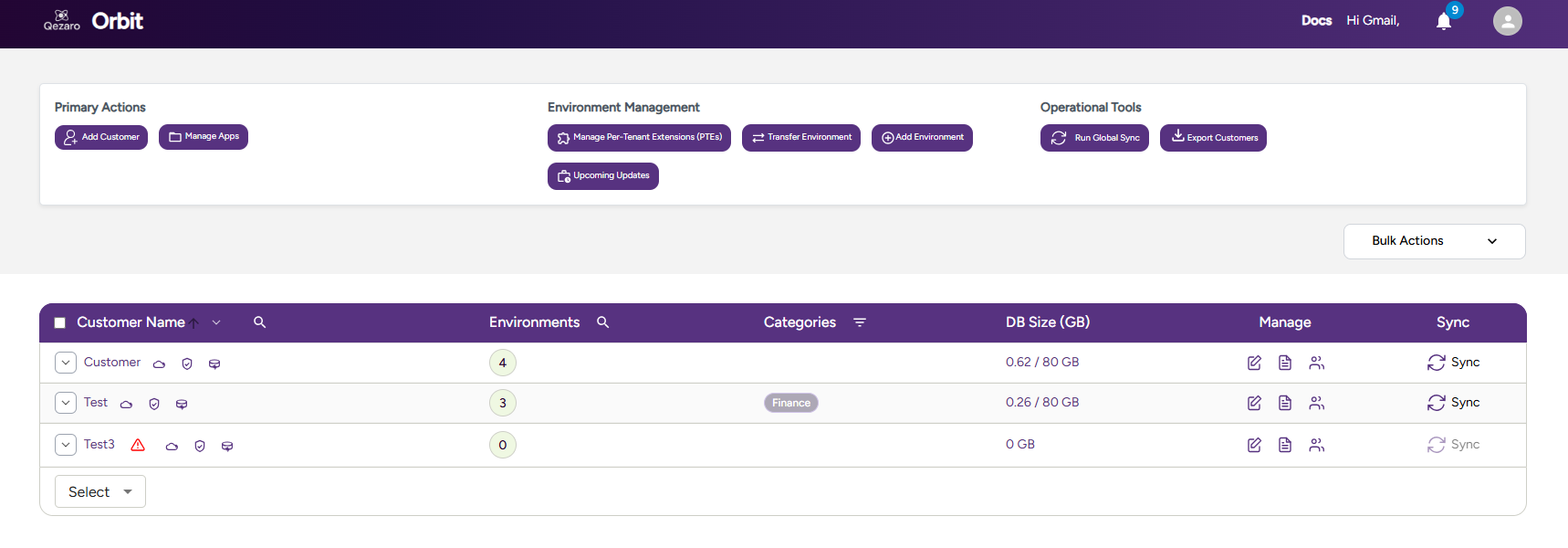

Main Dashboard
Add New Environment
Section titled “Add New Environment”- Creates an environment immediately.
- However, it may not appear in the portal right away.
- To view the new environment, manually run Sync.
Transfer Environment
Section titled “Transfer Environment”- Transfer a Business Central environment to another Microsoft Entra tenant.
- Useful for scenarios such as tenant consolidation, customer onboarding, or demo handoff from partner to client.
- The transfer process is initiated from the portal and handled securely in coordination with Microsoft systems.
- 🔗 Learn more in Microsoft Docs – includes full technical details and limitations.
View Customer Inventory
Section titled “View Customer Inventory”- Quickly access each customer’s:
- Business Central
- BC Admin Center
- Azure Portal
- Partner Center
- Use the search function to filter and locate customers efficiently.
Bulk Upgrade Reschedule
Section titled “Bulk Upgrade Reschedule”- Select multiple customers or environments.
- Choose a reschedule date from the allowed calendar range.
- Submit the bulk reschedule — the action is queued and typically runs about one hour after initiation.
Global Sync
Section titled “Global Sync”- Located in the top menu, this action manually triggers synchronization for all customers.
- Sync also runs automatically every 2 hours.
- Duration varies between a few minutes to 30 minutes, depending on customer volume.
🎥 Demo Video
Section titled “🎥 Demo Video”👉 View full screen – Main Dashboard
📸 Example Screenshot
Section titled “📸 Example Screenshot”