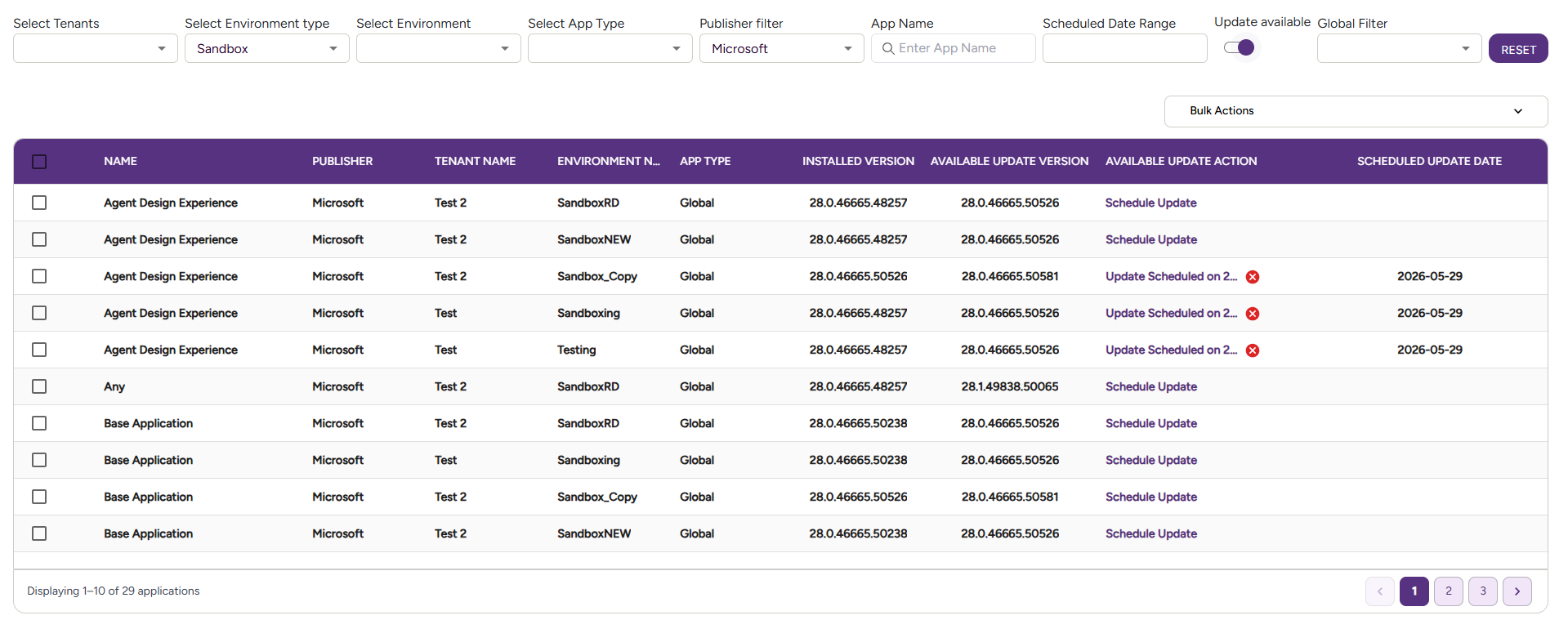

Manage Apps Page
The Manage Apps page gives you a centralized view of all Business Central apps installed across your customers’ tenants and environments. From here you can see which version each app is on, where it’s deployed, and trigger updates — individually or in bulk — without having to log into each tenant separately.
🗂️ Navigating the App Inventory
Section titled “🗂️ Navigating the App Inventory”By default, the page filters to show non-Microsoft apps, since those are the ones you typically manage as a partner.
You can narrow down the list using these filters:
| Filter | What it does |
|---|---|
| Customer | Show apps for a specific customer |
| Environment | Filter by a specific BC environment |
| Environment Type | Production, Sandbox |
| Publisher | Filter by the app publisher |
| App Name | Search for a specific app |
| App Type | Global, Per-tenant Extension, Dev Extension |
| Scheduled Date Range | View apps with updates scheduled in a time window |
| Update available toggle | Show only apps where an update is available |
Bulk Update Apps
Section titled “Bulk Update Apps”Once you’ve filtered the list to the apps you want to update, you can trigger a bulk update with one action.
How it works:
- Apply filters to show the apps you want to update
- Click the Bulk Update button — this applies to all apps on the current page only
- A job is scheduled to run within the next 1 hour
- Once the update completes in the Business Central Admin Center, the portal reflects the new version on the next sync (every 2 hours, or trigger a manual sync)
- If your filtered list spans multiple pages, repeat the bulk update on each page
🎥 Watch the Demo
Section titled “🎥 Watch the Demo”👉 View full screen – Manage Apps page
📸 Example Screenshot
Section titled “📸 Example Screenshot”